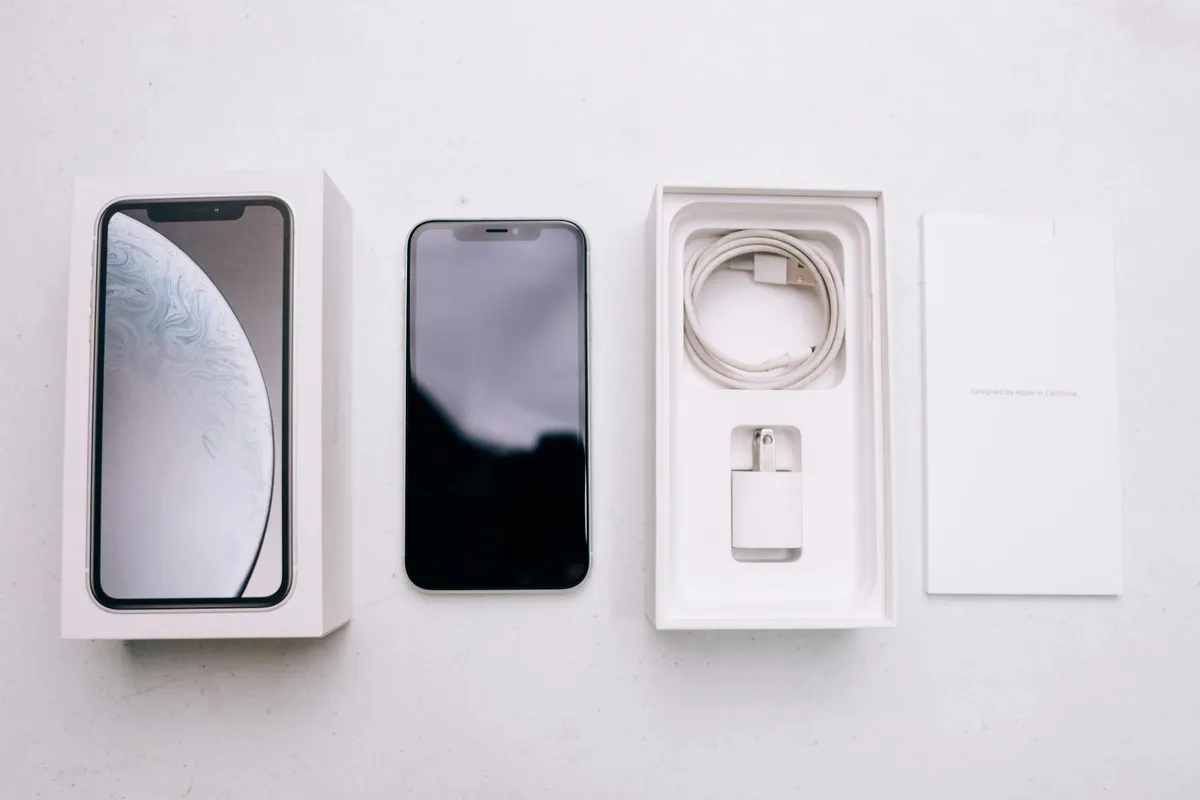
Got a new iPhone? Awesome. Here is the actual right order to set it up. I have done this maybe a hundred times by now (mine, family members, friends who text me at 8 PM in a panic). The order matters more than people realize.
Before you start
Couple things to do BEFORE you turn on the new phone:
- Plug your old phone into power. The migration process drains the battery on the old phone. You do not want it dying mid-migration.
- Run a fresh iCloud backup. Settings → [your name] → iCloud → iCloud Backup → Back Up Now. Wait for it to finish.
- Update your old phone to the latest iOS. Migration works better if both phones are on the same iOS version.
- Charge the new phone for 20 minutes. It probably has some battery from the factory but not enough to comfortably do the whole setup.
The right way to migrate
You have three options for moving stuff to your new phone. Here they are in order of preference:
Option A: Quick Start (best)
Hold your old phone next to the new one when you turn it on. A pop-up appears on the old phone asking if you want to set up the new one. Say yes. The phones will pair and you will be guided through the process.
Then choose "Transfer from iPhone" — this moves everything directly between phones over Wi-Fi. Takes 30 minutes to a couple hours depending on how much data you have. The new phone gets EVERYTHING — apps, settings, photos, messages, even your wallpaper.
This is by far the cleanest option. Use this if both phones are accessible.
Option B: Restore from iCloud backup
If you do not have your old phone (lost, broken, sold), you can restore from your iCloud backup. The new phone will set up, you sign in with your Apple ID, and it pulls down the backup over Wi-Fi.
The catch: free iCloud only gives you 5GB, which is not enough for a real backup. You probably need at least the $0.99/month plan to make this work. If you are setting up a new iPhone and your old one died, hopefully you had been paying for iCloud storage.
Option C: Set up as new (sometimes the right move)
Skip migration entirely. Sign in with your Apple ID, redownload your apps fresh, and start over with a clean phone.
This is more work, but every couple years it is worth doing. Cleans out junk you accumulated over the past few phones. Makes the new phone faster.
What to do after migration
Once the migration finishes, here is the order I do things in:
- Sign back into all your accounts. Apps that need passwords (banking apps, work apps, email) will need re-authentication. Get this out of the way before you actually need them.
- Re-set up Face ID. It does not transfer between phones for security reasons.
- Set up Apple Pay cards. Same — credit cards do not transfer for security reasons. You will need the cards or to verify with your bank.
- Check your eSIM. If you have an eSIM, your carrier may need to transfer it. Some carriers do this automatically; some require you to call.
- Update your apps. App Store → your profile → check for updates. There will be a bunch.
- Re-pair your Bluetooth stuff. AirPods usually carry over, but car Bluetooth, headphones, and watches may need re-pairing.
- Check your Health app data. If you transferred from another phone, your Health data should be there. If not, restore from iCloud Health backup.
The settings to check or change
After the basics are done, run through these settings:
- Notifications: see my other article about which to turn off.
- iCloud Photos: make sure it is on if you want photos to sync.
- Find My iPhone: make sure it is on (it should be by default).
- Default browser/email: if you use Chrome or Outlook, set them as defaults.
- Focus modes: set up Do Not Disturb schedules.
Common problems and quick fixes
Problem: Migration is taking forever.
Fix: Make sure both phones are on Wi-Fi (not cellular), plugged into power, and close to each other. The migration speed depends on Wi-Fi quality.
Problem: Some apps did not transfer over.
Fix: Apps that are no longer in the App Store (or were removed by the developer) cannot be re-downloaded. You will see them as "waiting" indefinitely. Just delete them.
Problem: Messages are not all there.
Fix: Make sure "Messages in iCloud" is turned on in Settings → [your name] → iCloud → Messages. May take a few hours to fully sync.
Problem: Authentication app codes are gone.
Fix: If you use Google Authenticator, there is an export feature. If you have already lost access, you will need to use backup codes or contact the services to reset 2FA.
The takeaway
New iPhone setup is one of those things that looks intimidating but is actually pretty smooth if you do it in the right order. Plan for an hour total. Do it in the morning when you have time, not at 9 PM when you are tired and impatient.
And next time you set one up, you will already know the order.