Look, every new phone comes set up to do a bunch of stuff you almost certainly do not want. Notifications you did not ask for, animations that slow things down, default apps you would never have chosen. Most people just leave it all alone because changing settings is annoying.
I am here to tell you it takes about three minutes to change five things that will make your phone way less annoying. Here they are.
1. Turn off ALL the notification permissions, then add back what you actually want
This is the big one. By default, every app you install asks for notification permissions and most of them just take it. Then you spend the rest of your life hearing buzz buzz buzz from apps you do not care about.
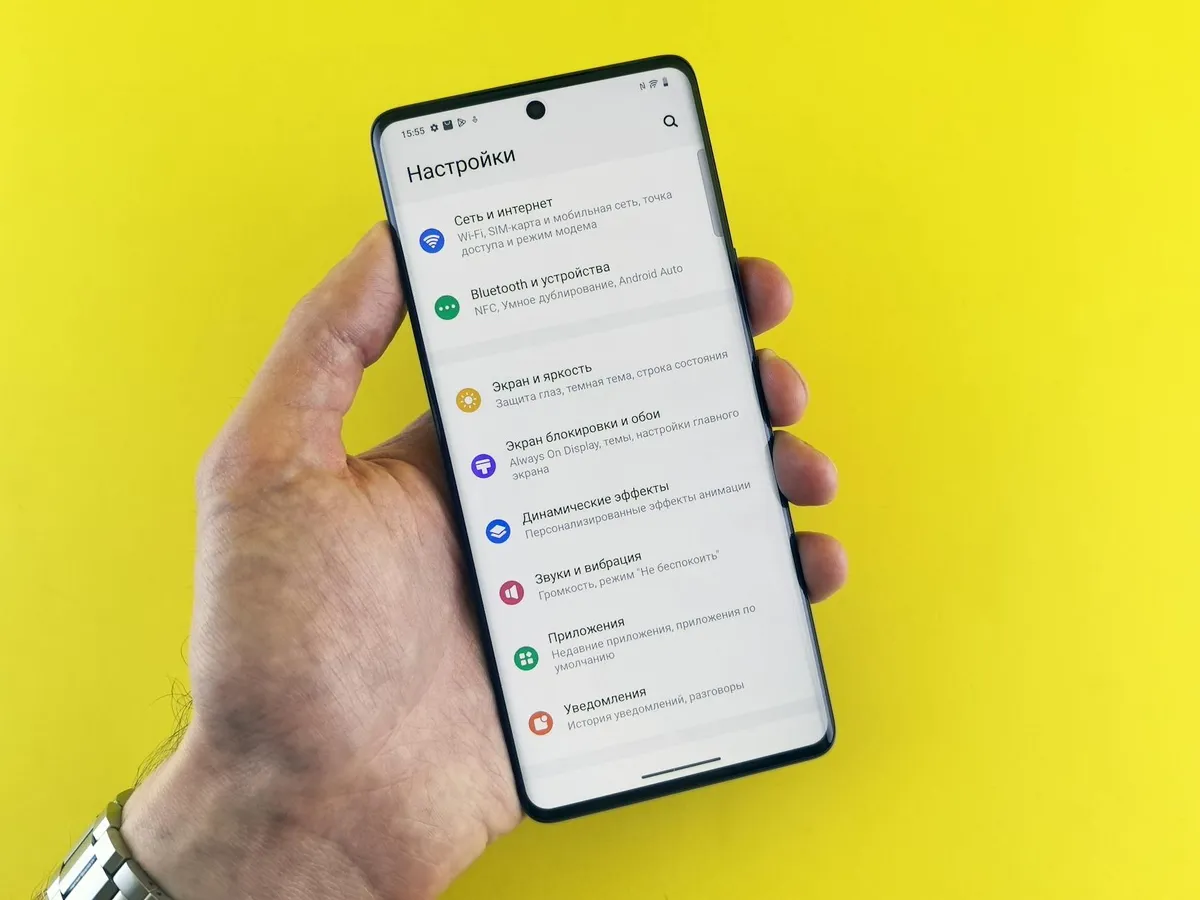
What to do: go to Settings → Notifications. Turn off notifications for everything except the apps you genuinely want to hear from. For me that is: Messages, Phone, Calendar, my email app, and maybe two others. That is it.
If you find yourself missing a notification later, you can always turn it back on. But starting from "off" and adding back is way better than starting from "on" and trying to turn things off one by one.
2. Reduce motion
Modern phones have a bunch of fancy animations that look cool the first time and slightly annoying every time after that. They also slow things down a tiny bit and sometimes give people motion sickness.
What to do: on iPhone, Settings → Accessibility → Motion → Reduce Motion. On Android, the equivalent is in Developer Options (search "animation scale" and turn them all to 0.5x or off).
Your phone will feel snappier almost immediately. Apps will open faster. You will not miss the animations.
3. Disable the default search and assistant features you do not use
Both iOS and Android have a bunch of search and assistant features built in. Some of them are useful. Most of them are not, but they consume battery and occasionally pop up and annoy you.
What to do: turn off Siri Suggestions, Spotlight Search results from apps you do not use, Google Assistant if you do not use it. On iPhone: Settings → Siri & Search. On Android: Settings → Apps → Default apps → Digital Assistant.
Quieter phone, longer battery, fewer annoyances.
4. Set Do Not Disturb to be on automatically at night
This one is so basic but most people never set it up. Your phone should be on Do Not Disturb every night automatically, with maybe an exception for calls from people in your favorites list (in case of emergency).
What to do: Settings → Focus (iPhone) or Settings → Sound → Do Not Disturb (Android). Set a schedule. I use 10 PM to 7 AM. Add favorites as exceptions if you want emergency calls to come through.
Your sleep will get better within a week. I am completely serious.
5. Turn off the lock screen widgets and notifications you do not want
By default your lock screen probably shows previews of every notification, calendar widgets, weather widgets, news widgets, and other stuff. Most of it is clutter.
What to do: long-press your lock screen (iPhone) or go to Settings → Display → Lock screen (Android). Remove the widgets you do not actually look at. Set notification previews to either "show only when unlocked" or "hide content."
Your lock screen becomes a clean clock instead of an information dump. Plus, your private messages stop being readable when your phone is on the table.
The takeaway
Three minutes of work and your phone is now significantly less annoying than 95% of phones in the wild. You can do this on someone else's new phone too — they will think you are a wizard.
Next time you get a new phone, do these five things first before installing any apps. Future you will be grateful.